Adding Menu Item
Menu items are the items customers order from the menu. Let's take a look at how to add and configure these menu items.
This is how to add a menu item to the order system:
- From the dashboard, click the Menus button on the left-hand side of the screen.

-
In the menus list, click the menu you want to add the item to.
-
In the categories list, click the category you want to add the item to.
-
Click Create New Dish.
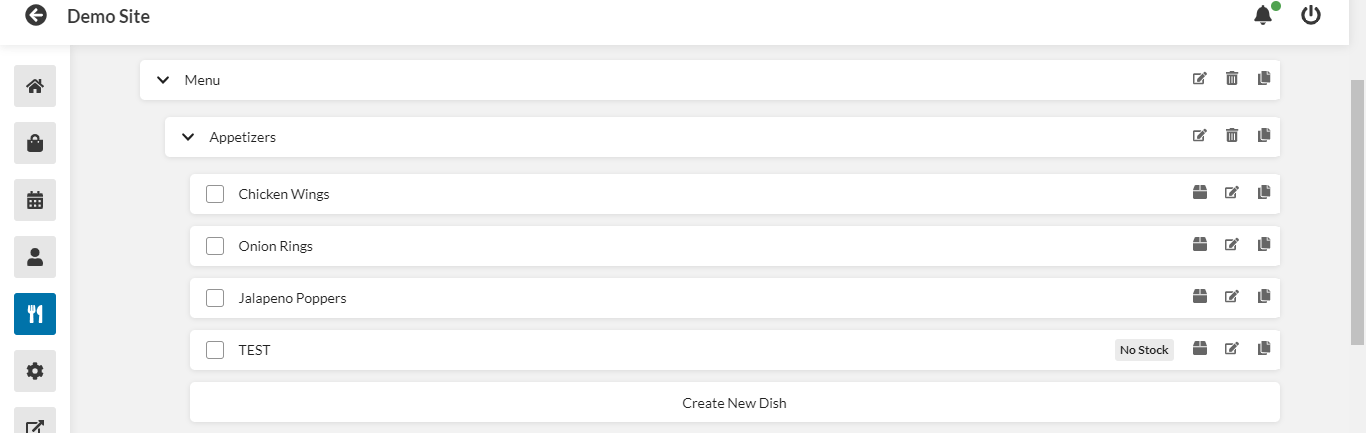
How to create a dish:
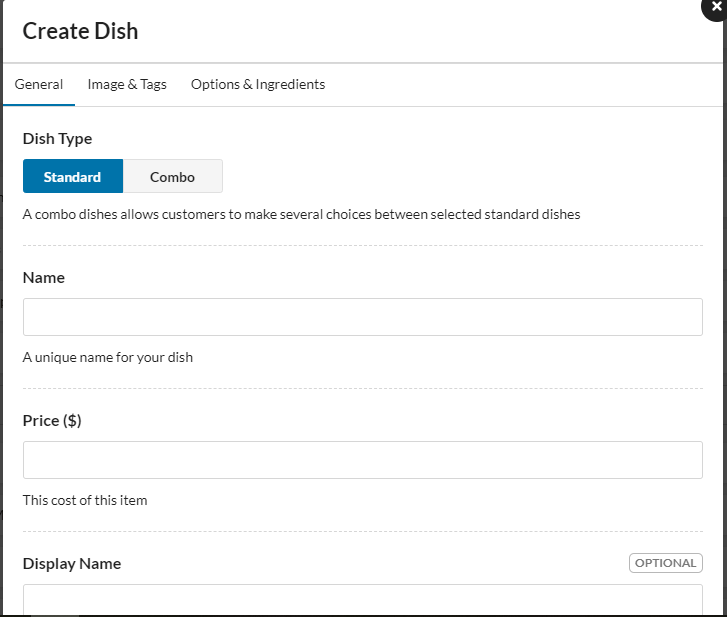
- In the Create Dish window that pops up, under the General tab, select Standard or Combo dish. The combo allows the customer to choose multiple existing dishes.
-
Type in a name for your dish.
-
Enter the cost of the dish.
-
Enter the name of the dish that will display to your customers.
-
Enter the name of the dish as it will appear on the order receipt.
-
Enter a description of the dish.
-
Enter a subtitle for your dish, if desired.
-
Select the taxes that should be applied to the dish.
-
Click Save.
Adding dish choices for combos:
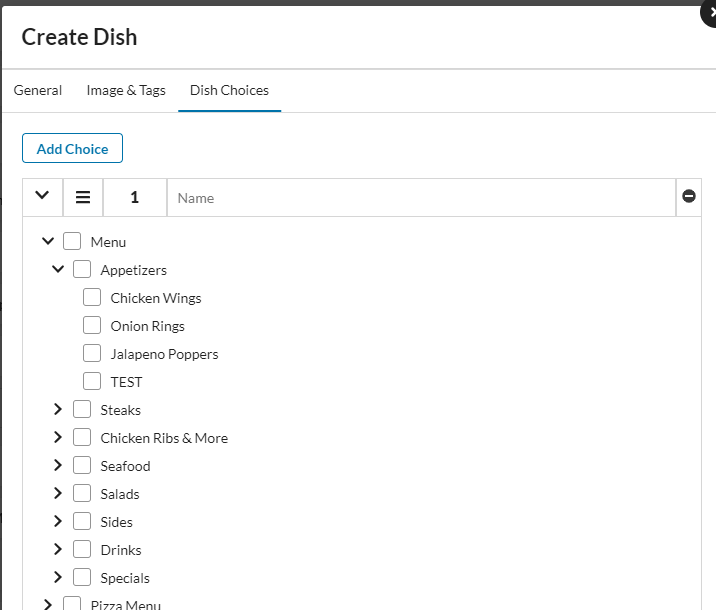
- In the Create Dish window, go to the Dish Choices tab, which will only show if you have selected Combo in the General tab.
-
Click Add Choices, and select from your menus the dishes that will be part of the combo.
-
Click Save.
Adding options and ingredients to a dish:
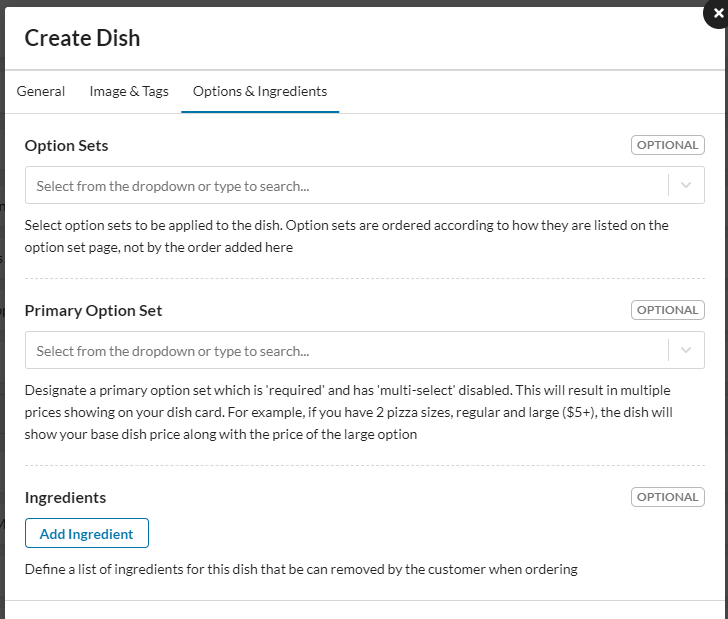
- In the Create Dish window, go to the Options & Ingredients tab, which will only show if you have selected Standard in the General tab.
-
Select any option sets that will apply to the dish.
-
Select the primary option set for the dish. This option set will be required and will have multi-select disabled.
-
To add an ingredient that the customer can remove from the dish when ordering, click Add Ingredient, then type in the name of that ingredient.
-
Click Save.