Adding Menu Images
Images on menu items (dishes) make the menu and dishes more appealing and typically increases conversion rates and sales. Therefore, It's recommended to add high-quality images to the dishes.
These are the ways to add images to dishes:

Provide a link from the internet. The image isn't uploaded, but just linked and the image needs to remain at the link.

Provide a way to upload the images to the order system. This is the best way to make sure the image is sized correctly and will always remain available.
 | File Upload Select a local image to upload |
 | Web Camera Add a photo directly from the tablet, or a mobile phone |
| Link Paste a link from the web to upload |
 | Facebook Select a photo from your Facebook account |
 | Google Drive Select an image from Google Drive |
 | Google Photos Select an image from Google Photos |
 | Dropbox Select an image from Dropbox |
 | Instagram Upload from Instagram |
 | Instagram Upload from Evernote |
How to add images to menu items:
-
From the dashboard, click the Menus button on the left-hand menu.
-
Select a menu, and a category if applicable to drill down to the menu item.
-
Menu items are displayed in rows. At the right-hand side of the row for your selected menu item, click Edit.
-
In the window that pops up, click the Images & Tags tab.
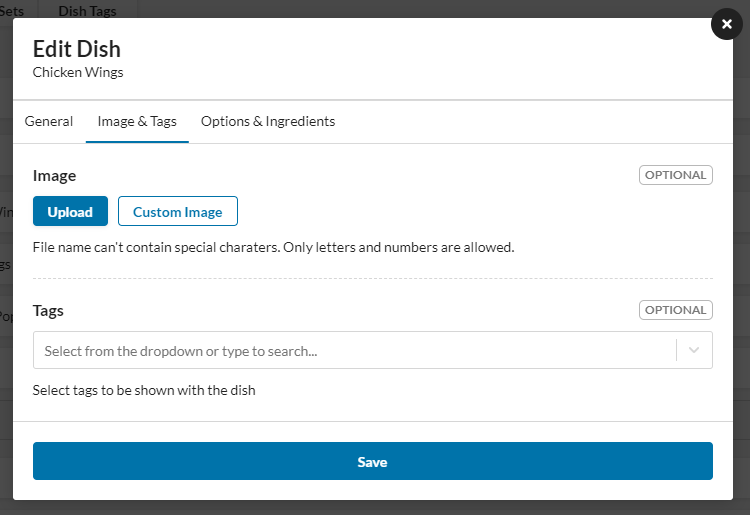
. To link directly to an image, select Custom Image and paste the URL To upload an image, click Upload. You can choose Local File Upload, Link, Camera, Facebook, Google Drive, Google Photos, Dropbox, Instagram, or Evernote as the source for your image.
-
You will need to login into the service, if required, to allow access.
-
Once you select an image, you can Crop, Rotate, Enhance, or Sharpen it, or make it Grayscale.
-
When the image is edited to your satisfaction, click Add. This will upload the image from the selected service and return you to the Images & Tags tab.
-
Add any tags to the image.
-
Click Save. Your menu item now has an image.
Uploading Directly from Camera
In order to use the camera, you must use a device that has a built-in camera, like a phone or a tablet.
The order tablet provided will work.
Make sure the App is open on the device, log in, and navigate to the menu item, using the instructions above.
When you select Camera, the device will ask for permission to use the camera. Approve and the device's camera app will open. After taking the picture, click save.
