customer-management
title: Customer Management sidebar_position: 30
Customer List
The Customer List contains the list of the customer who has either signed up for an account or has made a purchase.
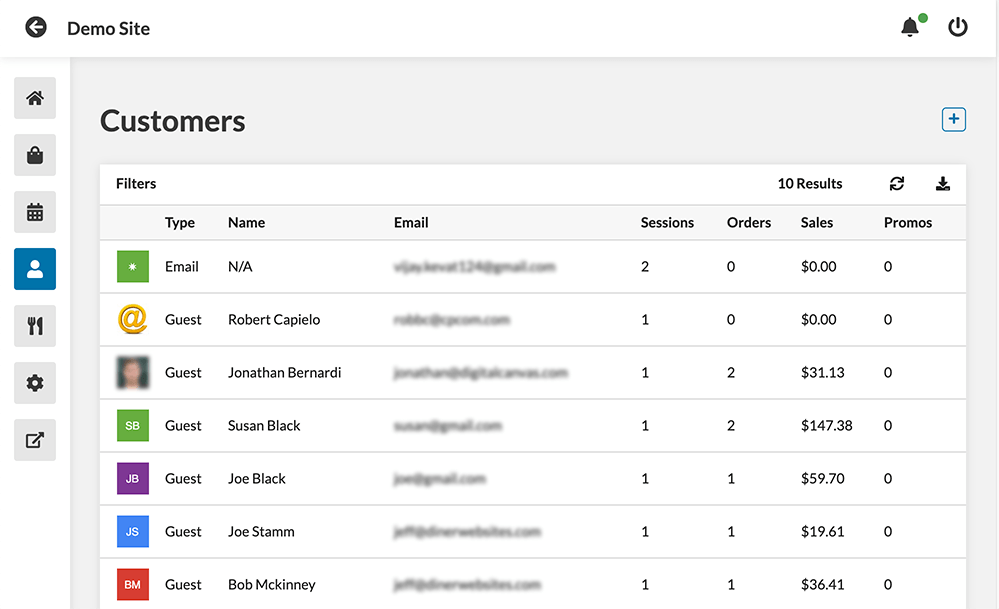
The customer list contains the following info: Type - How the customer signed up. This may be Email, Facebook, Google, or Guest. Guest is an account that hasn't completed a purchase. Name - Name of the customer, if provided. Customers that don't have a name haven't signed up or created an account yet. Sessions - number of separate times the customer has visited the site. Orders - the number of orders placed by the customer Sales - Total sales by the customer Promos - number of promo codes used by the customer Click the customer row to edit the customer. At the top right there are buttons to change the size of the list, export the customer list and create new customers.
How to view customer details
- From the dashboard, click the Customers button on the left-hand side of the screen.
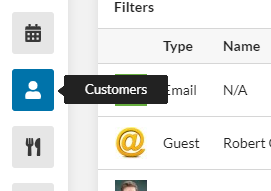
- Click the customer whose details you want to view.
How to edit a customer's password:
- From the dashboard, click the Customers button on the left-hand side of the screen.
- In the customer list, click the customer whose password you want to edit.
- In the window that pops up, click the Actions drop-down menu.
- Select Edit Password.
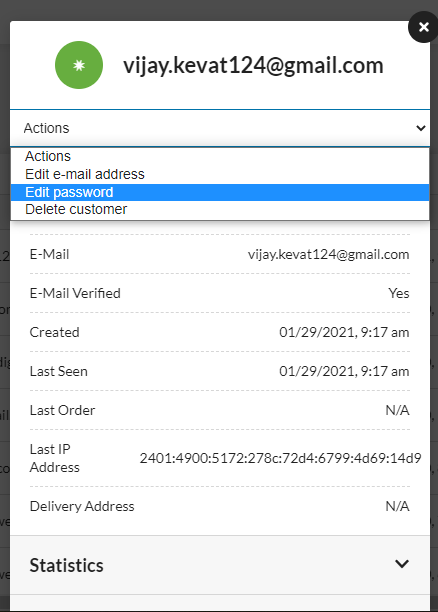
- In the dialog that pops up, enter a new password for the customer.
- Click OK. The customer's password is now updated.
How to delete a customer:
- From the dashboard, click the Customers button on the left hand side of the screen.
- In the customer list, click the customer whom you would like to delete.
- In the window that pops up, click the Actions drop-down menu.
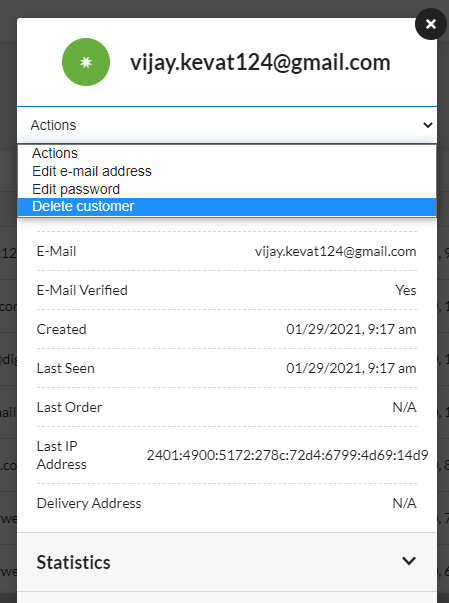
- Select Delete Customer.
- Click OK to confirm.
- The customer is now deleted.